We’ve all been there. You tap send on an iMessage and immediately regret it. Maybe there’s a typo that changes the entire meaning. Perhaps you sent a message to the wrong person. Or you fired off something in frustration that you wish you could take back. For years, iPhone users had no recourse. Once a message left your phone, it was gone forever. That changed with iOS 16. Apple introduced a feature that lets you unsend an iMessage within a short window after sending it. Knowing how to unsend a message on iPhone can save you from embarrassment, misunderstandings, and awkward conversations. This guide explains exactly how the feature works, what its limits are, and what your recipient actually sees when you pull a message back.
What “Unsend” Actually Does on an iPhone
The unsend feature does not work like a time machine for every message you’ve ever sent. It’s a narrow tool with specific conditions. When you unsend an iMessage, the message is removed from your conversation and from the recipient’s device, provided they meet certain software requirements. A small gray note appears in both transcripts saying you unsent a message. The original text disappears. However, this only applies to iMessages—the blue bubble conversations. SMS and MMS messages, which appear as green bubbles, cannot be unsent. The feature also has a strict time limit. You have two minutes from the moment you hit send to pull the message back.
Before You Start: The Two Requirements Most People Miss
Two conditions must be met before the unsend option will even appear. First, you need to be running iOS 16 or later on your iPhone. Second, the message must be an iMessage, not a standard SMS. If either condition is missing, the “Undo Send” button simply won’t show up. You can check your iOS version by opening Settings, tapping General, and selecting About. If you’re on iOS 15 or earlier, you’ll need to update your software before you can use this feature. As for the message type, look at the color of the bubble. Blue means iMessage. Green means SMS. Only blue bubbles can be unsent.
Step-by-Step: How to Unsend an iMessage on iPhone
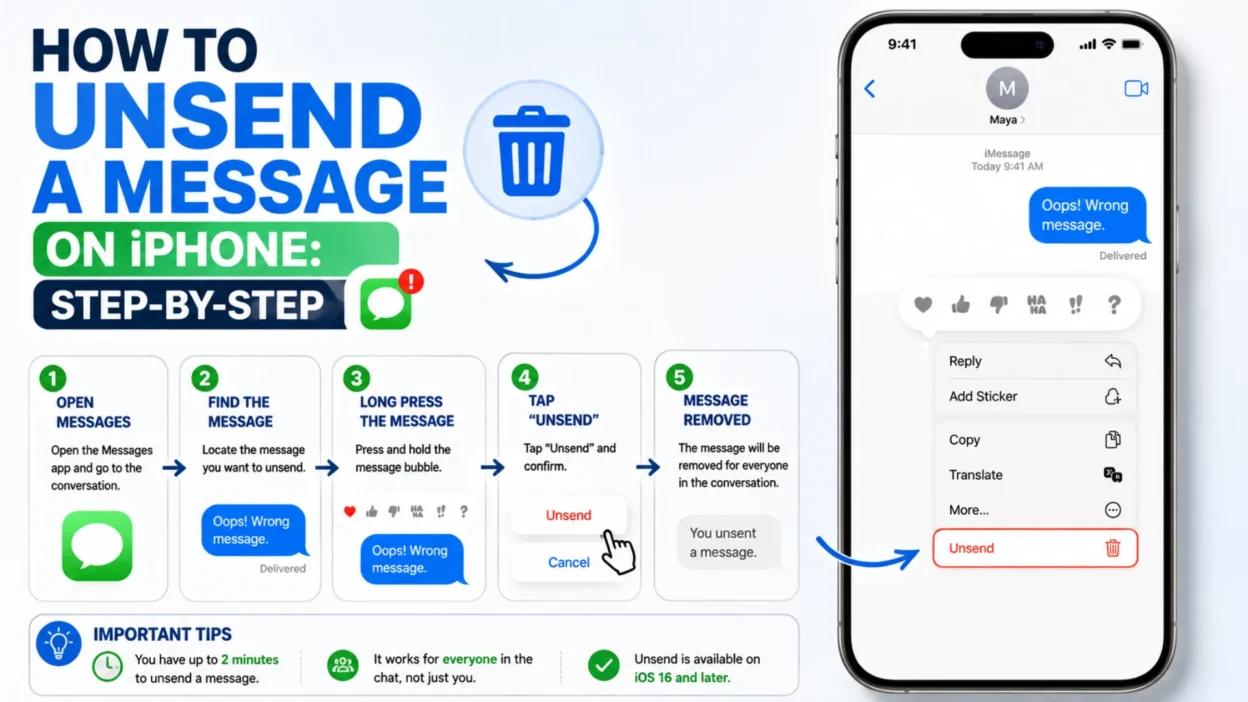
The process is straightforward once you know where to look. Follow these steps:
- Open the Messages app on your iPhone.
- Navigate to the conversation containing the message you want to unsend.
- Touch and hold the message bubble. Do not tap it—hold it until a menu appears.
- Look for “Undo Send” in the pop-up menu. It typically appears near the bottom.
- Tap “Undo Send.”
After you tap, you’ll see a balloon-popping animation. A small gray note appears in the conversation confirming that you unsent a message. If you don’t see “Undo Send” in the menu, the two-minute window has likely expired, or the message is an SMS that cannot be unsent. In that case, you’ll see other options like “Copy” or “Edit” instead.
What the Recipient Sees After You Unsend
This is where expectations often diverge from reality. If the person you’re messaging is using iOS 16 or later, the message disappears from their device. They see a note saying you unsent a message, but they cannot read the original text. However, if they’re using an older version of iOS or an Android device, the original message remains visible on their end. Apple notifies you of this possibility when you unsend. You’ll see a warning that the recipient may still see the original message in their transcript. In other words, unsending is not a guaranteed erasure. It depends on what software the other person is running.
Edit vs. Unsend: Which Should You Use?
Apple offers two related features: unsend and edit. They serve different purposes. Unsend removes the message entirely. Edit changes the text of a message you’ve already sent. You can edit an iMessage up to five times within 15 minutes of sending it. The recipient sees the updated version, and the message is marked as “Edited.” Both you and the recipient can tap that label to view previous versions. So which should you use? If you made a small typo, edit is usually the better choice. If you sent something you regret entirely, unsend is the way to go. Just remember that editing has a longer window—15 minutes versus 2 minutes—but it doesn’t erase the original from the conversation history.
| Feature | Time Window | Limit | What Recipient Sees |
|---|---|---|---|
| Unsend | 2 minutes | Once per message | Message removed (if on iOS 16+) |
| Edit | 15 minutes | Up to 5 times | Updated text, “Edited” label, history accessible |
Why You Can’t Unsend Green Bubble Texts
Green bubble messages are SMS or MMS texts sent through your carrier’s network, not through Apple’s iMessage service. Carriers don’t support the unsend protocol. Once an SMS leaves your phone, it’s delivered to the recipient’s device and stored there. There’s no mechanism for recalling it. This is why Apple’s unsend feature only works with iMessage. The distinction matters because many people assume “text message” and “iMessage” are the same thing. They’re not. If the person you’re messaging doesn’t have an iPhone, or if iMessage is turned off, your conversation is SMS-based. Unsending won’t be an option.
The 2-Minute Window: Why It’s Shorter Than You Think
Two minutes sounds like a reasonable amount of time to realize your mistake. In practice, it passes quickly. If you’re typing a long message, you might spend 30 seconds composing it. By the time you hit send and second-guess yourself, half the window could be gone. The clock starts the moment the message is sent, not when you notice the error. This is why some users find the feature frustrating. They see the problem at minute three and discover it’s too late. Apple chose two minutes as a balance between giving users a safety net and preventing abuse of the feature. It’s enough time for genuine mistakes but not enough for cold-footed second thoughts.
Group Chats: When Unsend Works and When It Doesn’t
Unsend behaves differently in group conversations. If everyone in the group is using iMessage on iOS 16 or later, unsending works the same way as in a one-on-one chat. The message disappears for all participants. However, if even one person in the group is on an older device or using SMS, the unsend may not remove the message from their view. Apple’s documentation notes that the feature works in a group chat as long as all participants meet the software requirements. In mixed groups, the original message may remain visible to some members. This inconsistency makes unsending in group chats less reliable than in individual conversations.
Unsend on iPad, Mac, and Apple Watch
You’re not limited to your iPhone. The unsend feature works across Apple devices, provided they meet the software requirements. On an iPad, you need iPadOS 16.1 or later. On a Mac, you need macOS Ventura (version 13) or later. On an Apple Watch, you need watchOS 9 or later. The steps are essentially the same. Open the Messages app, find the conversation, touch and hold (or right-click on Mac) the message bubble, and select “Undo Send.” The message is removed across all your synced devices, assuming they’re signed into the same Apple ID.
Common Reasons “Undo Send” Doesn’t Appear
If you’re holding a message bubble and the “Undo Send” option is missing, several explanations are possible. The most common is that more than two minutes have passed since you sent the message. Another possibility is that the conversation is SMS-based rather than iMessage. Check the bubble color: green means SMS. A third reason is that your iPhone is running an older version of iOS. Finally, if you’re in a group chat with mixed device types, the option may be unavailable. In each case, the fix is different. Update your software, confirm you’re using iMessage, or accept that the window has closed.
What to Do After the 2-Minute Window Closes
Once the two-minute window expires, unsending is no longer possible. You have a few options left. If it’s been less than 15 minutes, you can still edit the message up to five times. Use this to correct typos or soften the tone. If editing isn’t enough, you can send a follow-up message to clarify or apologize. A simple “Sorry, that came out wrong—let me rephrase” can defuse most situations. You can also delete the message from your own device, but remember that this only removes it from your view, not the recipient’s. The original message remains on their phone.
Privacy Truths: What Unsend Can and Cannot Erase
Unsend is not a privacy tool. It’s a convenience feature. When you unsend a message, you cannot guarantee that the recipient hasn’t already seen it. Notifications may have appeared on their lock screen. They may have read it before you pulled it back. If they’re using an older device, the message stays in their conversation permanently. Even on iOS 16+, the note that you unsent a message remains visible. The recipient knows something was sent and withdrawn. Unsend gives you a second chance, but it doesn’t give you a clean slate. Treat it as a helpful safety net, not a guarantee of secrecy.
Frequently Asked Questions About Unsending Messages on iPhone
How long do I have to unsend a message on iPhone?
You have two minutes from the moment you send an iMessage. After that, the “Undo Send” option disappears.
Can I unsend a text message to an Android phone?
No. Unsending only works with iMessage, which requires both parties to use Apple devices. SMS messages sent to Android phones cannot be unsent.
What happens if the recipient has an older iPhone?
If the recipient is running iOS 15 or earlier, the original message remains on their device. You’ll be notified that they may still see it.
Can I unsend a message in a group chat?
Yes, if everyone in the group is using iMessage on iOS 16 or later. If any member is on an older device or SMS, the message may remain visible to them.
Does the recipient know I unsent a message?
Yes. A gray note appears in the conversation saying you unsent a message. They won’t see the original text on a compatible device, but they’ll know something was withdrawn.
Can I edit a message instead of unsending it?
Yes. You can edit an iMessage up to five times within 15 minutes of sending it. The recipient sees the updated text with an “Edited” label.
Why don’t I see “Undo Send” when I hold the message bubble?
Either more than two minutes have passed, the message is an SMS (green bubble), or your iPhone isn’t running iOS 16 or later. Check all three conditions.
Does unsending work on iPad and Mac?
Yes, provided the device meets the software requirements: iPadOS 16.1 or later, or macOS Ventura or later.
Final Thoughts: A Second Chance, Not a Time Machine
The ability to unsend an iMessage is a small but meaningful improvement to how we communicate. It acknowledges that humans make mistakes in the moment. A typo, a misdirected message, a lapse in judgment—these happen to everyone. Having two minutes to catch and correct an error can spare you from unnecessary awkwardness. But the feature has clear limits. It only works with iMessage, only within a narrow time window, and only if the recipient has compatible software. It’s not a privacy shield. It won’t erase a message from someone who’s already seen it. Understanding those boundaries helps you use the tool wisely. So next time you hit send and immediately wince, act fast. You might just have enough time to take it back.

Serhii Dunev is a passionate content creator dedicated to crafting meaningful texts, messages, and word inspirations. He aims to help people express their emotions clearly through simple and impactful words.