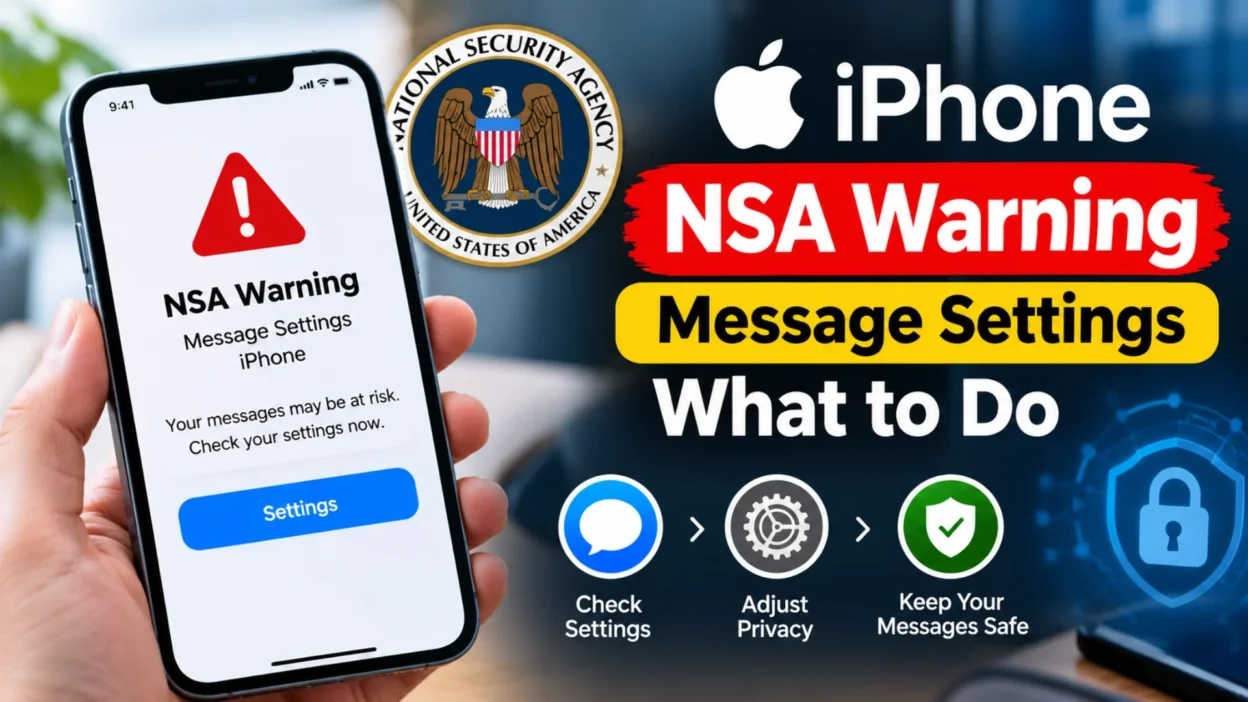
You see an unexpected pop-up on your iPhone screen warning you about a security threat, or you read a news headline about an NSA alert. Your first instinct might be to panic or immediately change every setting you can find. The nsa warning message settings iphone topic can feel overwhelming because it mixes genuine government security advice with scam pop-ups designed to look official. Understanding the difference is essential, because reacting to the wrong kind of warning can actually put your data at greater risk.
This guide breaks down what the NSA has actually warned iPhone users about, which settings you should review, and how to tell a real security notice from a fake one. You’ll also learn practical steps to protect your device without breaking the features you rely on every day.
What the NSA Actually Warned iPhone Users About
The National Security Agency issued a warning that made headlines, but the core message wasn’t about a specific virus or a new iOS bug. The alert focused on a real-world security incident where contact suggestions from Apple’s on-device AI contributed to a serious privacy breach. According to reporting on the NSA’s guidance, the agency highlighted how automatic contact suggestions could inadvertently add unintended people to sensitive group chats.
Specifically, the warning addressed scenarios in encrypted messaging apps like Signal, WhatsApp, and Telegram. The NSA’s broader point was simple: people aren’t always who they say they are online, and your phone’s convenience features can blur those lines further. Consequently, the agency recommended reviewing certain iPhone settings to reduce the risk of accidental contact sharing.
It’s worth noting that the NSA did not tell everyone to stop using their iPhones. The guidance was targeted and measured, aimed at users who handle sensitive communications or want tighter control over their digital footprint.
The Two iPhone Settings at the Center of the Warning
The NSA’s warning pointed to two specific settings that work together to pull contact information from messages into your address book. Understanding how they function helps you decide whether to change them.
1. Contact Access in Messaging Apps
The first setting lives inside each messaging app’s permissions. If you go to Settings, then Apps, then select a messaging app like Signal or WhatsApp, you’ll find a Contacts option. If this setting allows access beyond “None,” the app can pull contact details from your phone’s address book and use them within the app.
The NSA’s recommendation was to set this to “None” and add contacts manually within the app instead. It’s less convenient, but it prevents the app from automatically syncing names and numbers you may not want associated with that account.
2. Apple Intelligence Contact Suggestions
The second setting sits deeper in the system. Navigate to Settings, then Apple Intelligence & Siri, then Apps, then Contacts. Here you’ll find options like “Show Contact Suggestions” and “Learn from this App.” These features use on-device AI to infer when a contact’s details might have changed or when a new person should be added to your address book.
Disabling these options stops Siri and other Apple intelligence features from suggesting contact updates based on your messages. The trade-off is that if a friend changes their number, your phone won’t automatically prompt you to update it.
| Setting Location | What It Controls | NSA Recommendation |
|---|---|---|
| Settings > Apps > [Messaging App] > Contacts | App access to your address book | Set to “None” |
| Settings > Apple Intelligence & Siri > Apps > Contacts | AI-powered contact suggestions | Disable suggestions and learning |
| Signal App > Settings > Share Contacts with iOS | Sharing contacts back to iOS | Disable |
Why These Settings Matter for Your Privacy
At first glance, contact suggestions seem harmless. However, the incident that prompted the NSA’s warning showed how quickly convenience features can create security gaps. In that case, an AI-driven suggestion added a journalist’s contact details into a sensitive group chat after the information was copied and pasted from an email. The system inferred that the contact belonged in the conversation, and the result was a significant leak.
For most people, the risk is lower. You probably aren’t discussing military operations in a group chat. Nevertheless, the same mechanism can add work colleagues to family threads, mix personal and professional contacts, or expose information you’d rather keep separate. The NSA’s guidance essentially asks users to decide how much automation they want in their contact management.
How to Adjust These Settings Step by Step
Changing these settings takes only a few minutes. The exact menu names may vary slightly depending on your iOS version and region, but the general path remains consistent.
Step 1: Limit Messaging App Contact Access
Open the Settings app and scroll down to find the Apps section. Tap on the messaging app you use most, whether that’s Signal, WhatsApp, Telegram, or another service. Look for a Contacts permission and set it to “None.” This prevents the app from reading your phone’s address book.
Step 2: Disable AI Contact Suggestions
Return to the main Settings menu and tap Apple Intelligence & Siri. From there, select Apps and then Contacts. Turn off “Show Contact Suggestions” and “Learn from this App.” This stops the system from using message content to suggest new contacts or updates.
Step 3: Check In-App Contact Sharing
Open your messaging app and go to its internal settings. In Signal, for example, look for an option called “Share Contacts with iOS” and disable it. This prevents the app from sending contact suggestions back to your phone’s system.
Step 4: Review Location and Bluetooth Settings
While the NSA’s specific warning focused on contacts, broader security guidance from the agency has also recommended turning off Bluetooth when you’re in public spaces and being cautious with automatic Wi-Fi connections. These steps reduce your exposure to nearby tracking and unsecured networks.
Don’t Confuse NSA Warnings with Scam Pop-Ups
One of the biggest sources of confusion is that scammers use the NSA’s name to frighten people. A fake pop-up might claim that the NSA has detected a virus on your iPhone and instruct you to call a number or download an app. These are scams, and interacting with them can lead to data theft or financial loss.
The NSA does not send pop-up warnings directly to your phone screen. Real security guidance comes through official channels like government websites, press releases, and Apple’s own security notifications. If a pop-up demands immediate action, urges you to call a phone number, or asks you to download something, close it immediately.
A specific type of attack called ClickFix uses this tactic. These pop-ups tell you to verify your identity, upgrade an app, or fix a technical error. The NSA has warned that ClickFix is a common method hackers use to gain access to devices. If you see one, don’t click anything. Close all your apps and return to the home screen.
What Apple’s Own Alerts Look Like
Apple does send legitimate security notifications, and they look different from scam pop-ups. In 2026, Apple sent threat notifications to users in 110 countries, warning them that their devices might have been targeted by mercenary spyware. These alerts appear as push notifications on the Lock Screen and read something like: “Apple detected a mercenary spyware attack targeted at your iPhone”.
If you receive one of these notifications, take it seriously. Apple only sends them when it has high confidence that a device has been targeted. The notification usually directs you to Apple’s support resources for further guidance.
Common Mistakes to Avoid
A few missteps can undermine your security even when you’re trying to be careful.
Clicking “Close” on a Suspicious Pop-Up
Many scam pop-ups are designed so that clicking the close button actually triggers a download or opens a malicious link. Instead of clicking anything, swipe up to close the app or press the home button to exit.
Turning Off All Government Alerts
Some users confuse NSA security guidance with the government alerts that appear during emergencies. Turning off emergency alerts might seem like a way to avoid scary messages, but it also means you could miss life-saving information about severe weather or local emergencies. You can manage these alerts in Settings > Notifications > Government Alerts, but think carefully before disabling them entirely.
Ignoring Legitimate Warnings
On the other hand, dismissing every warning as a scam is equally risky. If Apple sends a spyware notification or if the NSA issues a public advisory, ignoring it leaves you exposed. The key is to verify the source through official channels before acting.
Platform Differences: iPhone vs Android
The NSA’s contact suggestion warning was specific to Apple’s ecosystem because of how Apple Intelligence handles on-device contact inference. Android has its own contact management systems, and Google’s approach differs. On Android, contact syncing is typically managed through your Google account and individual app permissions.
That said, the broader advice applies to both platforms. Review which apps have access to your contacts, disable automatic suggestions you don’t need, and be skeptical of any pop-up that demands immediate action. Security hygiene is platform-agnostic, even when the specific settings differ.
When to Seek Professional Help
If you suspect your iPhone has been compromised, a few signs warrant professional attention. Unexpected battery drain, unfamiliar apps appearing without your install, or strange network activity can all indicate a problem. In those cases, contacting Apple Support or a cybersecurity professional is a reasonable step.
For most users, though, the NSA’s guidance is about prevention rather than recovery. A few minutes spent reviewing your contact and AI settings can significantly reduce your exposure to accidental data sharing.
FAQ About NSA Warning Message Settings iPhone
What is the NSA warning about iPhone settings?
The NSA warned that certain iPhone settings, particularly contact suggestions and messaging app contact access, could inadvertently share information or add unintended contacts to conversations.
How do I turn off contact suggestions on my iPhone?
Go to Settings > Apple Intelligence & Siri > Apps > Contacts and disable “Show Contact Suggestions” and “Learn from this App”.
Is the NSA pop-up on my iPhone real?
No. The NSA does not send pop-up warnings directly to your phone. Pop-ups claiming to be from the NSA are scams designed to trick you into clicking links or calling fake support numbers.
Should I turn off government alerts on my iPhone?
You can manage government alerts in Settings > Notifications > Government Alerts. However, disabling them means you might miss emergency warnings about severe weather or public safety threats.
What is ClickFix and why did the NSA warn about it?
ClickFix is a type of cyberattack that uses fake pop-ups to trick users into running malicious commands. The NSA warned that these attacks have spread to iPhones and Android devices.
Does the NSA warning mean I should stop using my iPhone?
No. The NSA’s guidance was about reviewing specific settings, not abandoning the device. Most users can improve their security by adjusting a few contact and AI permissions.
What should I do if I clicked on a fake NSA pop-up?
Change your passwords immediately, contact your bank if you entered financial information, and run a security scan on your device. If you downloaded an app, delete it and check your device for unusual activity.
Final Thoughts on NSA Warning Message Settings iPhone
The nsa warning message settings iphone topic combines two very different things: legitimate security guidance from a government agency and fake pop-ups from scammers. Knowing which is which protects you from both unnecessary panic and genuine risk.
The NSA’s actual advice is straightforward. Review your messaging app contact permissions, disable AI contact suggestions if you value privacy over convenience, and stay skeptical of any warning that demands immediate action. Meanwhile, keep government emergency alerts on unless you have a specific reason to turn them off.
You don’t need to overhaul your entire digital life. A few deliberate setting changes, combined with healthy skepticism, will keep your iPhone secure without sacrificing the features that make it useful.

Serhii Dunev is a passionate content creator dedicated to crafting meaningful texts, messages, and word inspirations. He aims to help people express their emotions clearly through simple and impactful words.