Knowing how to send a voice message on iPhone can make texting faster and more personal. Instead of typing a long message, you can record your voice and send it directly through the Messages app.
Apple’s current Messages app lets you record an audio message, listen to it before sending, continue recording, or cancel it. Audio messages can also include a transcription when the feature is supported for the language being used.
Whether you are new to iPhone or simply cannot find the audio button, this guide explains everything step by step.
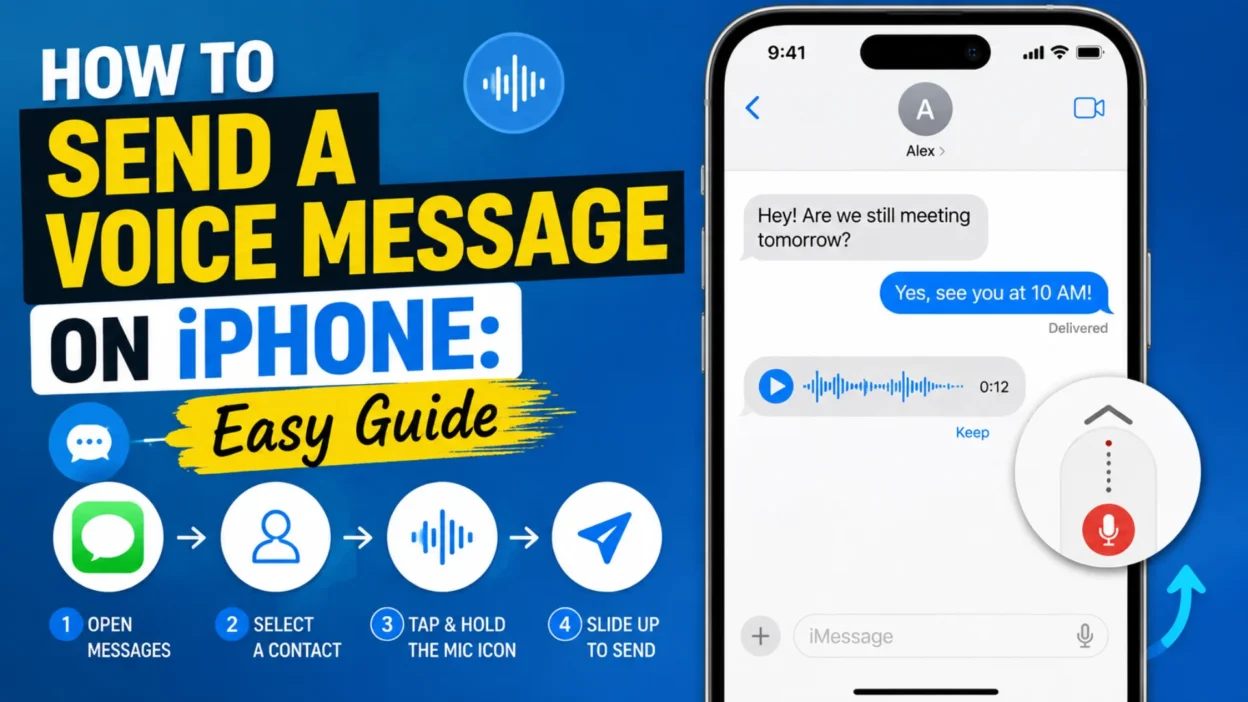
How to Send a Voice Message on iPhone
Sending a voice message is simple once you know where the audio option is located.
Follow these steps:
- Open the Messages app on your iPhone.
- Open an existing conversation or start a new one.
- Tap the Add (+) button next to the text field.
- Select Audio.
- Start speaking after the recording begins.
- Tap the Stop button when you finish.
- Listen to the recording if you want to review it.
- Tap the Send button to send your voice message.
Your audio message will appear inside the conversation, where the recipient can play it.
How to Send a Voice Message Faster
If you send voice messages often, there is a quicker method.
Open a conversation in Messages and press and hold the Audio recording button near the text field. Start speaking while holding the button.
This can save time because you do not need to open the Add menu first.
After recording, release the control or follow the onscreen options to finish and send the message.
The exact controls can vary slightly depending on your iOS version and Messages layout.
Where Is the Voice Message Button on iPhone?
If you cannot find the voice message button, do not worry. The Messages interface has changed over different iOS versions.
On newer versions, audio messaging is available through the Add (+) menu.
Try this:
Messages → Conversation → Add (+) → Audio
Once you select Audio, the recording controls should appear.
If you still cannot find the option, check that your iPhone is running a supported version of iOS and that you are using the Messages app rather than another messaging service.
How to Record a Voice Message Before Sending It
You do not have to send an audio message immediately after recording it.
After you stop recording, you can usually play it back before sending.
This is useful when the message contains important information. You can listen for background noise, mistakes, or parts that you want to record again.
If you do not like the recording, cancel it instead of sending it.
This simple review step can prevent accidental or unclear voice messages.
How to Listen to Your Voice Message Before Sending
Listening before sending is helpful when you want to make sure your recording sounds clear.
After finishing your recording:
- Stop the recording.
- Tap the Play button.
- Listen to the entire message.
- Decide whether you want to send or cancel it.
If everything sounds good, tap Send.
If you made a mistake, cancel the recording and create a new one.
How to Continue Recording a Voice Message
Sometimes you may stop recording and realize you forgot something.
On supported versions of Messages, you can continue recording instead of starting over.
After stopping the first recording, choose the option to Continue Recording. You can then add more audio to the message before sending it.
This is particularly useful for longer messages.
You can record your thoughts in sections rather than trying to say everything perfectly in one take.
How to Cancel a Voice Message on iPhone
If you change your mind, you can cancel the recording before sending it.
After recording, choose the option to close or discard the audio message instead of tapping Send.
This prevents the recording from being delivered to the recipient.
It is a useful feature when you accidentally start recording or notice that you are not ready to send the message.
How to Save a Voice Message on iPhone
Audio messages can be removed automatically from your iPhone’s Messages conversation after a period of time to help save storage.
If you want to keep an audio message, use the Keep option when it is available.
The recipient can still listen to a received audio message after receiving it. However, saving the message on your device can prevent it from disappearing from the conversation on your side.
This is especially useful for messages containing directions, reminders, personal notes, or other information you may need later.
How to Send a Voice Message to Someone Who Uses Android
You may wonder whether iPhone audio messages work when the recipient does not use an iPhone.
The answer depends on the messaging system and the devices involved.
Messages can use different technologies, including iMessage, RCS, SMS, or MMS. iMessage conversations appear with blue bubbles, while other messaging types can appear green.
Audio messaging features can vary depending on the conversation, carrier, device, and software version.
If the Audio option behaves differently in a conversation with an Android user, the issue may be related to the messaging method rather than your microphone.
Do Voice Messages Work Without Wi-Fi?
Voice messages can use a cellular data connection when Wi-Fi is unavailable, depending on the messaging service being used.
For iMessage, your iPhone can use Wi-Fi or cellular data.
If you have no internet connection, an audio message may not send through an internet-based messaging service.
Your carrier and messaging settings can also affect what is available.
If an audio message refuses to send, check your connection first.
Do Voice Messages Use Mobile Data?
They can.
Internet-based messages such as iMessage use data rather than traditional SMS allowances.
The amount of data used depends on factors such as the length and quality of the recording.
A short voice message normally uses relatively little data, but frequent or lengthy recordings can add up over time.
If you have a limited mobile data plan, sending audio over Wi-Fi can help reduce cellular data usage.
Why Can’t I Send a Voice Message on My iPhone?
Several issues can prevent an audio message from sending.
Common causes include:
- Weak internet connection
- Temporary Messages problems
- Outdated iOS software
- Microphone permissions or hardware issues
- Carrier restrictions
- Problems with the recipient’s messaging service
- Temporary Apple service issues
Start with the simplest checks.
Make sure your connection works, then close and reopen Messages. If that does not help, restart your iPhone.
Check Your Internet Connection
A poor connection can interfere with sending messages.
Try switching between Wi-Fi and cellular data.
For example, if Wi-Fi is unstable, turn it off temporarily and test the cellular connection.
If cellular data is unavailable, connect to a reliable Wi-Fi network.
After the connection improves, try recording and sending the audio message again.
Check Your iPhone Microphone
If the recipient cannot hear you, your microphone may be the problem.
Open another app that records audio, such as Voice Memos, and make a short recording.
Play it back.
If your voice sounds clear, the microphone is probably working normally. If the recording is extremely quiet or contains unusual noise, inspect the microphone openings and consider whether your iPhone needs service.
Avoid covering the microphone while recording.
Restart the Messages App
Temporary app problems can sometimes affect audio messaging.
Close the Messages app and open it again.
Then return to the conversation and try recording another voice message.
This quick step can resolve minor glitches without changing your settings.
Restart Your iPhone
A restart can also fix temporary software problems.
To restart your iPhone, use the normal shutdown controls for your model. Wait a few seconds after the device turns off, then turn it back on.
Once the iPhone finishes starting, open Messages and test the audio feature again.
Update iOS
Older software can sometimes cause unexpected problems.
Check for available software updates in your iPhone settings.
If an update is available, install it when convenient. Keep your iPhone connected to power if the update requires significant battery life.
After updating, test the voice message feature again.
Voice Message vs. Voice Memo
These two features are easy to confuse.
A voice message is recorded and sent directly within a conversation.
A voice memo is a separate audio recording created with the Voice Memos app.
Use a voice message when you want to quickly communicate with someone.
Use Voice Memos when you want to create, organize, edit, or keep recordings separately.
For example, a quick message to a friend is ideal for Messages. A longer personal recording may be better suited to Voice Memos.
Can You Send a Voice Message From Voice Memos?
Yes, you can share recordings created in the Voice Memos app.
Open Voice Memos and select the recording you want to share. Use the Share option and choose an available messaging method.
This approach is useful when you have already recorded something and do not want to create the recording again inside Messages.
It can also be helpful for longer recordings.
How to Send a Voice Message Without Holding the Phone
You do not have to keep your iPhone directly in front of your mouth.
Place the phone at a comfortable distance and speak clearly.
Avoid covering the microphone with your hand, case, or other objects.
For longer recordings, keep the phone stable. This can reduce handling noise and make the recording easier to hear.
How Long Can an iPhone Voice Message Be?
The practical recording length can depend on the messaging system, device, software version, available storage, and other factors.
For everyday conversations, shorter recordings are usually easier to send and listen to.
If you need to communicate a large amount of information, consider splitting the recording into several shorter messages.
This also makes it easier for the recipient to find specific information later.
How to Make iPhone Voice Messages Clearer
A few simple habits can improve audio quality.
Speak at a normal volume rather than shouting.
Keep the microphone unobstructed. Move away from loud fans, traffic, or crowded areas when possible.
You should also pause briefly before speaking.
For important messages, listen to the recording before sending it.
These small steps can make a noticeable difference.
Can iPhone Voice Messages Be Transcribed?
On supported versions of iOS, audio messages can have transcriptions.
Availability depends on the language and region.
When transcription is available, the recipient may be able to read the spoken content instead of listening to the entire recording.
However, automatic transcription is not perfect.
Names, accents, background noise, and unusual words can sometimes be interpreted incorrectly.
For important information, listening to the original recording is still a good idea.
What Happens When You Send a Voice Message?
After you tap Send, the audio recording is delivered through the messaging service used by the conversation.
The recipient can open the conversation and play the recording.
Depending on the messaging system and device, they may also see a transcription.
On your iPhone, audio messages can be automatically removed after a period of time unless you choose to keep them.
This helps reduce unnecessary storage use.
Can You Delete a Voice Message After Sending It?
You can delete messages and attachments from your own Messages conversation.
However, deleting a message does not always mean the recipient will lose their copy.
If you accidentally send an audio message, check whether the available Undo Send feature can be used within the allowed time.
Act quickly if the message contains something you did not intend to send.
Common Problems With iPhone Voice Messages
Here are some common issues and possible solutions:
| Problem | What to Try |
|---|---|
| Audio button missing | Open the Add menu in Messages |
| Recording will not start | Check microphone access and restart Messages |
| Recipient cannot hear you | Test the microphone with Voice Memos |
| Message will not send | Check Wi-Fi or cellular data |
| Audio disappears | Use Keep when available |
| Recording sounds noisy | Move to a quieter location |
| Feature behaves differently | Check your iOS and messaging type |
| Messages app freezes | Close the app and reopen it |
Quick Steps to Remember
If you only need the basic process, remember these steps:
Open Messages → Choose a conversation → Tap Add (+) → Tap Audio → Speak → Stop → Send.
That is all you need to send a basic voice message on a supported iPhone.
Frequently Asked Questions
How do I send a voice message on iPhone?
Open Messages, choose a conversation, tap the Add (+) button, select Audio, record your message, stop the recording, and tap Send.
Where is the voice message button on iPhone?
In newer versions of Messages, open the Add (+) menu beside the text field and select Audio.
Can I listen to my voice message before sending it?
Yes. After recording, you can play the audio to check it before deciding whether to send it.
Can I cancel a voice message before sending it?
Yes. If you do not want to send the recording, use the cancel or close option instead of tapping Send.
Why can’t I send a voice message on my iPhone?
Check your internet connection, microphone, Messages app, iOS version, and carrier or messaging settings.
Can I send an iPhone voice message to Android?
Audio messaging availability can vary depending on the recipient’s device and the messaging method used for the conversation.
Do iPhone voice messages use data?
Internet-based messaging services can use Wi-Fi or cellular data to send audio messages.
Can I save an iPhone voice message?
Yes. When the Keep option is available, you can save an audio message instead of allowing it to be automatically removed from your conversation.
Why does my voice message sound quiet?
Your microphone may be blocked, or you may be too far from it. Test the microphone with Voice Memos and make sure nothing covers the microphone openings.
Can iPhone voice messages be transcribed?
Yes, transcription is available for supported languages and configurations. Availability can vary by language and region.
Final Thoughts
Learning how to send a voice message on iPhone is useful when typing is inconvenient or when you want your message to sound more personal.
The basic process is quick: open Messages, choose a conversation, use the Add menu, select Audio, record your message, and send it.
If the feature does not work, check your connection and microphone first. Restarting Messages or the iPhone can also solve minor problems.
For longer recordings, consider using Voice Memos and sharing the finished recording through Messages.
With these steps, you can send clear voice messages without needing to type every word.

Serhii Dunev is a passionate content creator dedicated to crafting meaningful texts, messages, and word inspirations. He aims to help people express their emotions clearly through simple and impactful words.