If you’re wondering how to send voice message on iPhone, the process is quick and simple. Apple lets you send audio messages directly through the Messages app, which can be useful when typing feels inconvenient or when you want to communicate in a more natural way.
Voice messages are especially handy when you’re driving only if you’re using your phone safely while stopped, walking, explaining something complicated, or sending a longer thought without typing every word. You can record your voice, listen to it before sending, or cancel the recording if you change your mind.
What Is a Voice Message on iPhone?
A voice message is an audio recording that you send through the Messages app instead of typing a text.
The recipient can tap the audio message and listen to what you recorded.
It’s useful when:
- You don’t want to type
- You need to explain something quickly
- You’re sending a longer message
- You want your tone of voice to come through
- You’re chatting casually with friends or family
- You need to communicate while your hands are busy
Unlike a phone call, the recipient doesn’t have to answer immediately.
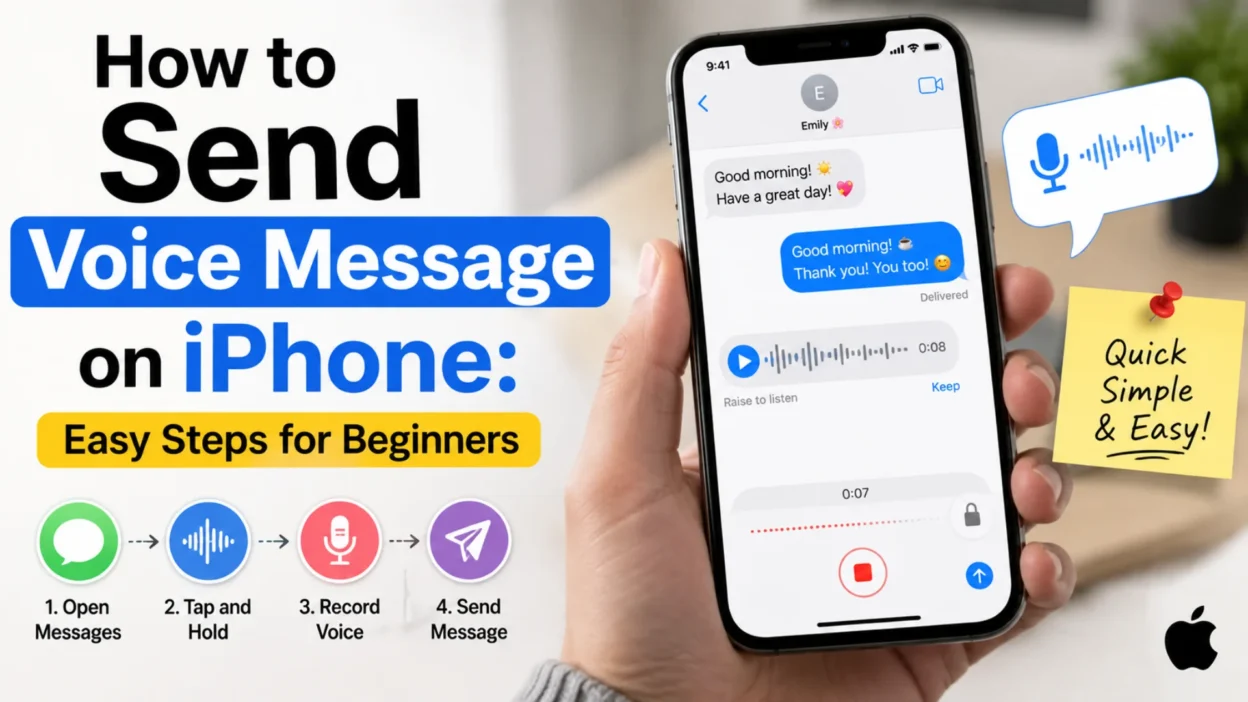
How to Send a Voice Message on iPhone
Sending an audio message through Apple’s Messages app only takes a few steps.
Step 1: Open the Messages App
Find and open the Messages app on your iPhone.
You can open an existing conversation or start a new one.
Step 2: Choose a Conversation
Tap the person or group you want to message.
If you need to start a new conversation, tap the compose button and select a contact.
Step 3: Find the Audio Message Button
Inside the conversation, look near the text field for the audio message button.
On recent versions of iOS, it appears as a small waveform-style icon near the message input area.
The exact position can vary slightly depending on your iOS version.
Step 4: Record Your Voice
Tap the audio button and begin speaking.
Say your message clearly and naturally.
You don’t need to speak extremely loudly. Keep the iPhone at a comfortable distance so the microphone can capture your voice clearly.
Step 5: Stop or Send the Recording
When you’ve finished speaking, use the available send control to send the recording.
Your voice message will then appear inside the conversation.
The recipient can tap it to listen.
Can You Preview a Voice Message Before Sending?
Yes, depending on the current Messages interface and iOS version, you may have options to stop or review your recording before sending it.
This can be useful when you’re sending an important message.
Before sending, listen for:
- Background noise
- Missing words
- Accidental pauses
- Incorrect information
- A message that is much longer than intended
If you don’t like the recording, cancel it and create a new one.
How to Cancel a Voice Message Before Sending
If you start recording and change your mind, you can cancel the recording instead of sending it.
The exact gesture or button can vary depending on the iOS version and Messages interface.
Generally, look for the cancel or delete option while the recording is active.
This is useful if you accidentally start recording or realize that you’re not ready to send the message.
How to Send a Voice Message in an Existing Conversation
You don’t need to create a new conversation every time.
Open the existing Messages conversation with the person.
Then:
- Tap the audio message option.
- Record your message.
- Stop the recording when finished.
- Send it.
The audio message will appear in the same conversation as your regular texts.
This makes it easy to keep the conversation together.
How to Send a Voice Message to Multiple People
You can send an audio message within a group conversation.
Open the group chat and use the same audio-message process.
Everyone included in the conversation can access the voice message according to the messaging features available to their devices.
Before sending a personal recording to a group, make sure you’re comfortable with everyone hearing it.
How to Send a Voice Message Without Typing
If typing is difficult or inconvenient, an audio message can be much faster.
Open Messages, choose your conversation, and use the audio recording option.
Then simply speak your message.
For example, instead of typing:
“I wanted to explain everything that happened today, but it’s a little complicated.”
You can record the explanation naturally.
This can save time, especially when your message would otherwise require several paragraphs.
How to Send a Voice Message to Someone Who Doesn’t Have an iPhone
This depends on the messaging method and the recipient’s device.
Apple’s Messages app can support different messaging systems depending on the devices involved and the features available.
If the recipient doesn’t use an iPhone, the conversation may use a different messaging technology.
The appearance and available audio features can therefore differ.
If an audio-message option isn’t available in the conversation, you may need to use another messaging service that supports voice recordings across devices.
Why Can’t I Send a Voice Message on My iPhone?
Several things can cause problems.
The Audio Button Isn’t Visible
The Messages interface can change between iOS versions.
Look around the message input area for the audio or waveform option.
If you still can’t find it, check whether you’re using the latest version of iOS available for your device.
Your Microphone Isn’t Working
Your iPhone needs access to a working microphone to record audio.
Try opening another app that uses the microphone, such as the Voice Memos app.
Make a short recording and play it back.
If you can’t hear your voice, there may be a microphone or software issue.
The Message Isn’t Sending
Check your internet or cellular connection.
Depending on the type of message being sent, connectivity can affect whether the audio message goes through.
You can also try closing and reopening Messages.
The Conversation Uses a Different Messaging System
Audio-message features can vary depending on the recipient’s device and messaging service.
If you’re messaging someone on a different platform, the available options may not match what you see in an iPhone-to-iPhone conversation.
How to Make iPhone Voice Messages Sound Better
Good audio doesn’t require special equipment.
A few simple habits can make a noticeable difference.
Speak Clearly
Use a normal speaking voice.
Avoid speaking too quickly.
Reduce Background Noise
Move away from loud fans, traffic, televisions, or crowded spaces when possible.
Keep the Phone Steady
Holding the phone at a comfortable distance can help maintain consistent audio.
Pause Between Ideas
Short pauses make longer recordings easier to understand.
Keep It Focused
If you’re explaining several things, organize your thoughts before recording.
A clear one-minute message is often better than a confusing five-minute recording.
How Long Can an iPhone Voice Message Be?
The practical length can depend on the messaging method, iOS version, available storage, and network conditions.
For everyday conversations, shorter recordings are usually easier for the recipient to listen to.
If you have a long explanation, consider breaking it into several smaller voice messages.
This makes the conversation easier to follow and lets the recipient pause between ideas.
Can You Save a Voice Message on iPhone?
Depending on the message and current iOS features, you may be able to keep or save an audio message rather than allowing it to disappear automatically.
If the recording contains something important, don’t assume it will remain available forever.
Use the available save or keep option when appropriate.
For especially important recordings, you can also consider using another method to preserve the audio.
Why Do Voice Messages Disappear?
Audio messages in Messages can have automatic expiration behavior.
This is designed to prevent old audio recordings from unnecessarily filling up your conversation history or device storage.
If you want to keep an important voice message, use the available option to save or keep it.
Don’t wait until you need the recording to discover that it has disappeared.
How to Listen to a Voice Message on iPhone
When someone sends you an audio message, open the conversation.
Tap the audio message to play it.
You can listen through the iPhone’s speaker or use headphones.
If you need to hear the message privately, headphones can be useful in public places.
Can You Replay an iPhone Voice Message?
Yes, when the audio message is still available in the conversation, you can generally play it again.
This is helpful when the sender gives you:
- An address
- A phone number
- Instructions
- A list of items
- Important details
- Directions
For information you need to remember, consider writing it down rather than relying only on the recording.
Can You Send a Voice Message Without Holding the iPhone?
Yes, depending on the current Messages interface and recording controls.
Some versions of the Messages app provide ways to record without continuously holding a button.
The available gestures can differ between iOS versions.
If your current interface behaves differently, look for the recording controls displayed when you tap the audio-message option.
How to Send a Voice Message Hands-Free
If you frequently send audio messages, hands-free features can make the process more convenient.
You can use Apple’s voice-assistant features to interact with your phone in supported situations.
However, don’t use hands-free messaging in a way that distracts you while driving.
If you’re behind the wheel, focus on the road and wait until it’s safe to use your phone.
How to Send a Voice Message Privately
If you’re in a public place, consider using headphones when listening to messages.
When recording, move somewhere quieter if the content is personal.
Also remember that voice messages can contain more information than you intended to share.
Before sending, think about who will hear the recording and whether the conversation is private.
Voice Message vs. Voice-to-Text on iPhone
These features are different.
A voice message sends your actual recording.
Voice-to-text converts your speech into written words.
| Feature | Voice Message | Voice-to-Text |
|---|---|---|
| Sends audio | Yes | No |
| Creates written text | No | Yes |
| Preserves tone | Yes | No |
| Good for long explanations | Yes | Sometimes |
| Easy to skim | No | Yes |
| Works well for casual chats | Yes | Yes |
Choose a voice message when tone and natural speech matter.
Choose voice-to-text when you want the recipient to read your message quickly.
When Should You Send a Voice Message?
Voice messages work especially well when:
- You have a long explanation
- Typing would take too long
- Tone is important
- You’re telling a story
- You’re giving detailed instructions
- You’re chatting casually
- You want to communicate naturally
For professional situations, consider whether an audio message is appropriate.
A short written message may be easier for someone to review later.
When Should You Avoid Sending a Voice Message?
An audio message isn’t always the best choice.
Avoid it when:
- The recipient is expecting written information
- The message contains important dates or numbers
- The recipient is in a situation where listening is difficult
- You’re discussing something that needs a searchable record
- The message is extremely long
- The content is highly sensitive
For important details, written communication can be easier to reference.
Common Problems When Sending Voice Messages
The Recording Sounds Too Quiet
Move the phone closer to you and reduce background noise.
The Audio Has Too Much Background Noise
Record in a quieter location.
The Recipient Can’t Hear You
Test the microphone using another recording app.
The Message Won’t Send
Check your connection and try again.
The Audio Option Looks Different
Your iOS version may use a different Messages layout.
Don’t worry if the icon isn’t exactly where you remember seeing it.
Tips for Better Voice Message Etiquette
Voice messages are convenient, but the recipient may not always be able to listen immediately.
Keep that in mind.
Keep Casual Messages Reasonably Short
A quick update doesn’t need to become a ten-minute recording.
Give Context
If you’re sending a longer audio message, briefly explain what you’re about to discuss.
Don’t Send Sensitive Information Carelessly
Voice recordings can contain names, addresses, account information, and other private details.
Think before you send.
Respect the Recipient’s Preferences
Some people love voice messages.
Others strongly prefer text.
If someone repeatedly asks you to text instead, respect that preference.
How to Send a Voice Message on iPhone: Quick Steps
For a quick reminder:
- Open Messages.
- Choose a conversation.
- Tap the audio message option.
- Speak your message.
- Stop the recording.
- Review it if needed.
- Tap the send control.
- Confirm that the message appears in the conversation.
The exact buttons or gestures may vary slightly depending on your iPhone model and iOS version.
Frequently Asked Questions
How do I send a voice message on iPhone?
Open Messages, select a conversation, choose the audio-message option, record your voice, and send the recording. The exact controls may vary by iOS version.
Where is the voice message button on iPhone?
In the Messages app, look near the text-entry field for the audio or waveform icon. Its position can change between iOS versions.
Can I listen to my voice message before sending it?
Depending on your iOS version and the current Messages interface, you may be able to stop and review the recording before sending it.
Why can’t I see the voice message option?
The Messages interface can differ between iOS versions and messaging types. Check the icons around the text field and make sure your iPhone software is up to date.
Can I send a voice message to an Android phone?
Audio-message availability can differ when messaging someone on a non-Apple device. If the feature isn’t available in your conversation, another messaging service may be needed.
Can I save an iPhone voice message?
Some audio messages can be kept or saved using the available controls. If a recording is important, save it rather than relying on automatic message retention.
Why did my voice message disappear?
Audio messages can have automatic expiration behavior. If you want to keep an important recording, use the available option to save or keep it.
Can I send a voice message without holding my iPhone?
Depending on your iOS version, Messages may offer recording controls or gestures that don’t require continuously holding the screen.
Is a voice message better than texting?
It depends on the situation. Voice messages are useful for longer explanations and tone, while text is better when information needs to be quickly scanned or referenced.
Can I send a voice message in a group chat?
Yes, when the messaging system and conversation support audio messages. Open the group conversation and use the available audio-message controls.
Conclusion
Learning how to send voice message on iPhone is simple once you know where the audio controls are located. Open Messages, choose your conversation, use the audio-message option, record what you want to say, and send it.
Voice messages are useful when you want to communicate naturally or explain something that would take too long to type. However, they aren’t ideal for every situation.
Keep recordings clear and reasonably focused. Before sending, make sure you’re comfortable with what you’re saying and who will hear it.
For important information, written messages may still be easier to search, save, and review later.

Serhii Dunev is a passionate content creator dedicated to crafting meaningful texts, messages, and word inspirations. He aims to help people express their emotions clearly through simple and impactful words.