
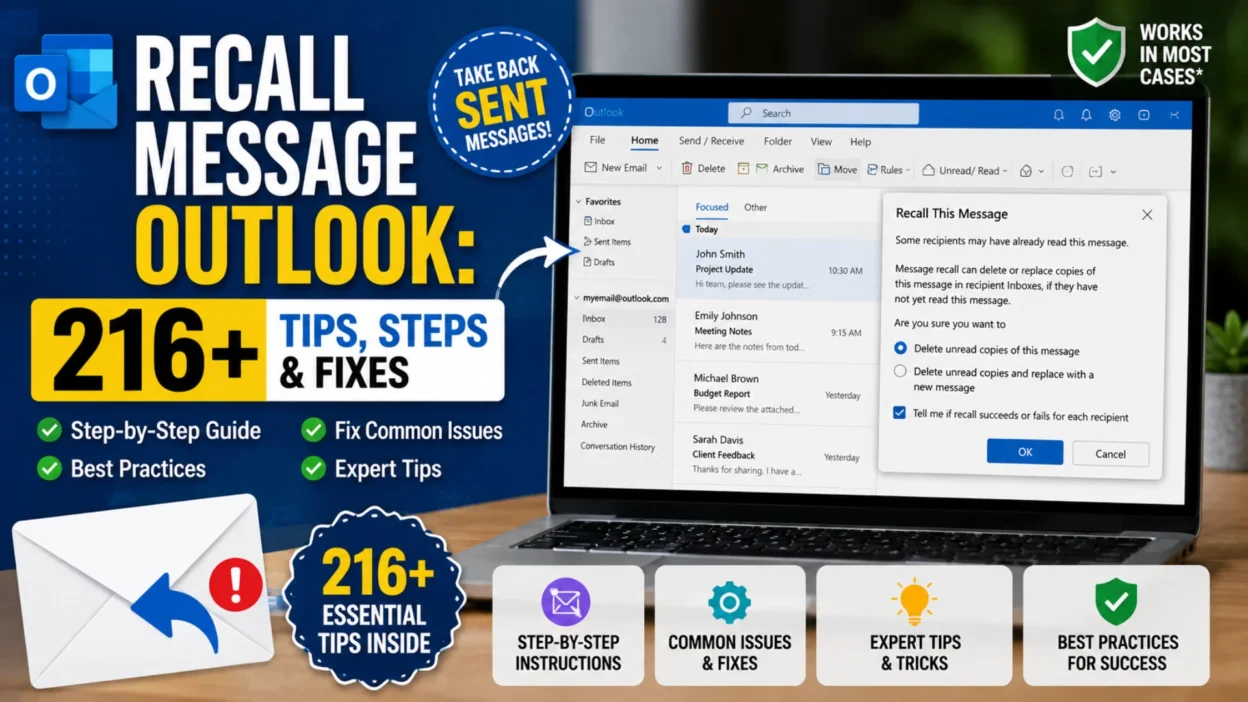
Have you ever sent an email in Outlook and immediately noticed a mistake? Maybe you forgot an attachment, entered the wrong information, or sent the message to the wrong person. In these situations, the recall message Outlook feature can be useful.
Outlook allows eligible users to attempt to recall a sent email. You may also be able to replace the original message with a corrected version. However, email recall has certain requirements, so it does not work in every situation.
This guide explains how Outlook message recall works, how to use it, when it may fail, and what you can do instead.
What Is Recall Message Outlook?
Recall message Outlook refers to Outlook’s feature for attempting to remove or replace an email after it has been sent.
The feature can be helpful when you:
- Send an email by mistake.
- Include incorrect information.
- Forget an important attachment.
- Notice a spelling or formatting error.
- Send the message before it is ready.
- Need to replace the original email with a corrected version.
Recall is an attempt rather than a guaranteed cancellation. Several factors can affect the result.
How to Recall a Message in Outlook
If your Outlook account and organization support message recall, you can usually follow these steps:
- Open Outlook.
- Go to Sent Items.
- Find the email you want to recall.
- Open the message in a separate window.
- Select the Message tab.
- Open the available message actions.
- Choose Recall This Message.
- Select the recall option you want.
- Confirm the action.
Outlook may provide a status notification after the recall attempt.
Can You Delete a Sent Email From Outlook?
Deleting an email from your Sent Items folder does not normally remove the copy that has already reached the recipient.
This is an important difference.
When you delete the message from your own mailbox, you are only removing your copy. A recipient may still have the email in their inbox.
A recall request is different because it attempts to affect the recipient’s copy.
Can You Recall an Email After It Has Been Opened?
Usually, recalling an email becomes much less effective after the recipient has already opened it.
The recall feature is primarily intended for messages that have not yet been read. Depending on the mailbox environment, Outlook may notify you whether the attempt succeeded or failed.
If the recipient has already seen the message, sending a correction is often the safer option.
Can You Recall an Email Sent to Gmail?
Outlook’s traditional recall feature is designed for specific Microsoft email environments. It is not a universal system for removing emails from every email service.
If you send an Outlook email to a Gmail address, for example, you generally should not expect Outlook’s traditional recall process to remove the message from the recipient’s Gmail inbox.
In that situation, a quick follow-up email is usually the practical solution.
Why Does Outlook Message Recall Fail?
A recall can fail for several reasons.
Common causes include:
- The recipient has already opened the email.
- The recipient uses a different email service.
- The account does not support the recall feature.
- The sender and recipient are not using a compatible Microsoft email environment.
- The message has already been moved or processed.
- Outlook or the organization’s email system does not support the required recall behavior.
Because of these limitations, you should not treat recall as a guaranteed way to undo an email.
What Happens When You Recall an Email?
When you request a recall, Outlook attempts to process the request according to the available mailbox and server conditions.
There are generally two common choices:
Delete the unread copy:
This attempts to remove the original message if it has not been opened.
Delete and replace:
This attempts to remove the original unread message and send a corrected version.
The exact result can vary based on the recipient’s mailbox and account setup.
How to Replace a Sent Email in Outlook
Sometimes correcting the message is better than simply deleting it.
To replace a sent message:
- Open Sent Items.
- Select the original email.
- Open the message actions.
- Choose the recall option.
- Select the option to delete and replace the message.
- Edit the email.
- Send the corrected version.
This can be useful when the original email contains a small mistake.
Does Outlook Tell You if a Recall Worked?
Outlook may provide a recall status notification depending on your account and configuration.
The result can indicate whether the recall was successful or unsuccessful.
However, receiving a recall notification does not mean every recipient has necessarily forgotten or unseen the original message. Always consider the possibility that the email was already viewed.
Recall Message Outlook on Windows
The traditional recall process is most commonly associated with Outlook’s desktop environment.
If you are using Outlook on Windows, check the Sent Items folder and open the message you want to recall. The available message actions depend on your Outlook version and account.
If you cannot find the recall option, your account or Outlook version may not support the traditional feature.
Recall Message Outlook on Mac
The recall experience can differ between Outlook versions and platforms.
If the recall option is missing on your Mac, do not assume that something is wrong with the application. The feature may depend on your Outlook version, account type, and organization’s email system.
In that situation, sending a correction email may be the fastest solution.
Can You Recall an Email From Outlook Web?
Outlook on the web does not always provide the same message-recall experience as traditional Outlook desktop applications.
Available options can depend on the account and Microsoft email environment.
If you do not see a recall option, check whether your organization uses a compatible Microsoft 365 or Exchange setup.
Recall vs Undo Send in Outlook
These two features are easy to confuse.
Recall happens after the message has been sent and attempts to remove or replace an eligible message.
Undo Send works differently. It delays sending for a short period, giving you an opportunity to cancel the message before it is actually delivered.
For future emails, a send delay can be more reliable than depending on recall after delivery.
How to Avoid Needing Email Recall
The easiest way to avoid a recall situation is to slow down before sending important messages.
Try this quick checklist:
- Check the recipient’s address.
- Review the subject line.
- Confirm the attachment.
- Read the message once more.
- Verify dates and numbers.
- Check formatting.
- Make sure sensitive information is intended for the recipient.
- Use a short send delay when available.
A few extra seconds can prevent a major email mistake.
What to Do If Outlook Recall Does Not Work
Do not panic if the recall fails.
The best response depends on the type of mistake.
If you forgot an attachment, send it immediately.
the information was incorrect, send a correction.
If the wrong person received the message, explain the mistake clearly and politely.
If the email contained sensitive information, contact the appropriate person or organization quickly and follow your normal security procedures.
Best Alternative to Outlook Recall
When recall is unavailable, a correction email is often the simplest solution.
Keep it short and direct. Explain what was incorrect and provide the updated information.
Avoid sending several confusing follow-up messages. One clear correction is usually better.
Outlook Recall Message FAQs
Can I recall a message in Outlook?
You may be able to recall a message if your Outlook account and the recipient’s mailbox meet the requirements for the recall feature.
Does recalling an email always work?
No. Recall is not guaranteed. The result depends on factors such as the recipient’s mailbox, account type, and whether the message has already been opened.
Can I recall an email sent by mistake?
Yes, if your Outlook environment supports recall. Open the sent message and look for the available recall option.
Can I recall an email after someone reads it?
A recall is generally intended for unread messages. Once the recipient has opened the email, recall may not remove it.
Can I recall an Outlook email sent to Gmail?
Traditional Outlook recall is not designed as a universal method for removing messages from external email services such as Gmail.
Why can’t I see Recall This Message?
The option may be unavailable because of your Outlook version, account type, mailbox environment, or organization settings.
Can I recall an email from Outlook mobile?
The traditional recall feature is primarily associated with supported Outlook desktop environments. Mobile options may differ.
What is better than recalling an email?
For future messages, a short send delay can give you time to cancel an email before delivery. After delivery, a clear correction email is often the best alternative.
Quick Outlook Recall Checklist
| Situation | Best Action |
|---|---|
| Sent an email too early | Try recall if available |
| Forgot an attachment | Send the attachment immediately |
| Wrong information | Send a correction |
| Wrong recipient | Contact the recipient promptly |
| Email already opened | Send a correction |
| Recall option missing | Check account and Outlook version |
| External email recipient | Do not rely on traditional recall |
| Want fewer mistakes | Use a send delay |
Final Thoughts
The recall message Outlook feature can be helpful when you need to correct an email after sending it. However, it has limitations and should not be considered a guaranteed way to undo a delivered message.
Before relying on recall, check whether your Outlook account supports it and whether the recipient’s mailbox is compatible. If recall fails, a short and professional correction email is usually the best next step.
For future messages, reviewing the recipient, attachment, and content before clicking Send can prevent many common email mistakes. A small send delay can also provide valuable time to catch errors.

Serhii Dunev is a passionate content creator dedicated to crafting meaningful texts, messages, and word inspirations. He aims to help people express their emotions clearly through simple and impactful words.