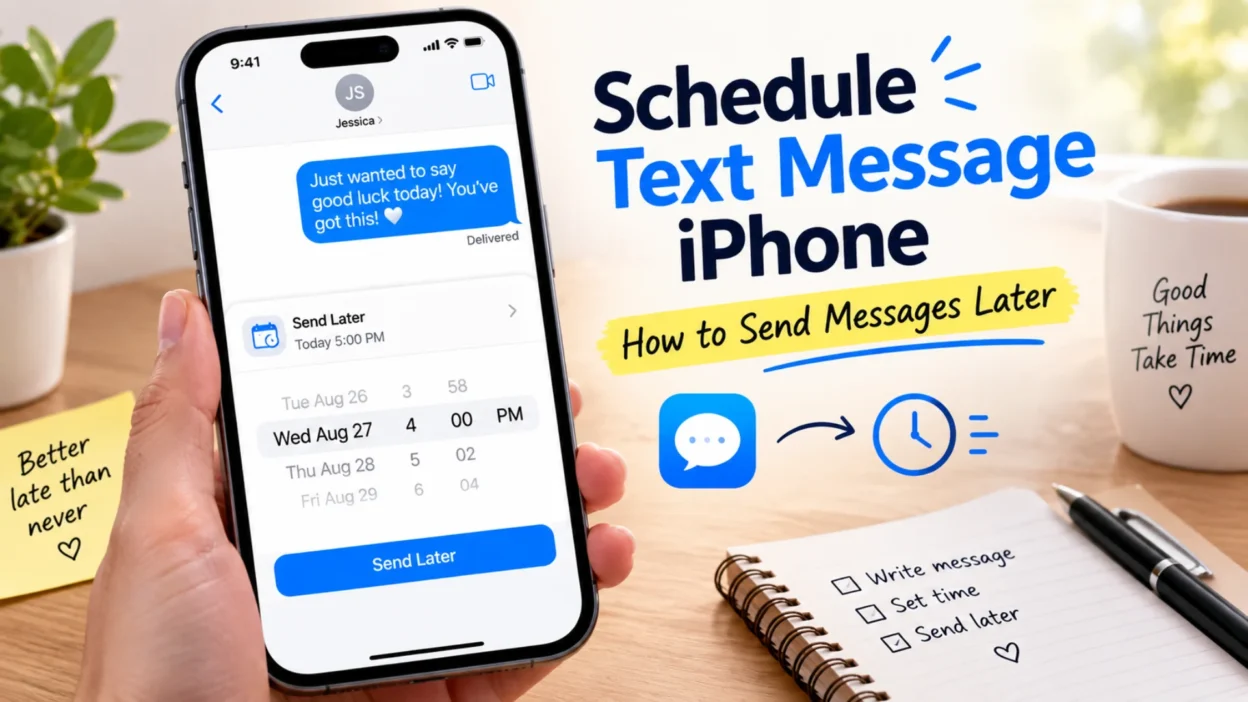
If you want to schedule text message iPhone users can now do it directly from the Messages app with Apple’s built-in Send Later feature. You don’t need a separate scheduling app for supported iMessage conversations.
The feature is useful when you want to send a birthday wish at a specific time, remember an important reminder, or write a message now without sending it immediately. Apple says scheduled messages can be set up to 14 days in advance and can still be delivered when your Apple devices are offline.
The main limitation is important: Apple’s built-in scheduling works with iMessage. It isn’t available for ordinary SMS conversations in the same way.
Can You Schedule a Text Message on iPhone?
Yes. On supported iPhones, the Messages app includes a Send Later option that lets you choose a future date and time for an iMessage.
The process is built into Messages, so there’s no need to create an automation just to schedule a normal iMessage. You can use it for individual conversations and supported group chats.
Scheduled messages remain visible in the conversation with a dashed outline until their delivery time. This makes it easy to identify messages that haven’t been sent yet.
Some common reasons to use the feature include:
- Sending birthday messages at midnight
- Remembering appointments or deadlines
- Messaging someone in another time zone
- Preparing a reminder in advance
- Sending a morning greeting later
- Writing an important message before you forget
- Avoiding late-night notifications
How to Schedule a Text Message on iPhone
The built-in process is straightforward. You can schedule the message from an existing conversation or while starting a new one.
Follow these steps:
- Open the Messages app on your iPhone.
- Open the conversation where you want to send the message.
- Tap the Add (+) button beside the text field.
- Choose Send Later.
- Tap the displayed time to open the scheduling controls.
- Select the date and time you want.
- Type your message.
- Tap the Send button.
After you schedule it, the message appears in the conversation with a dashed border. The scheduled delivery time also appears above the message.
You don’t need to keep the Messages app open until the selected time. Apple states that the scheduled message can be delivered even when all your devices are offline.
How Far Ahead Can You Schedule a Message?
Apple currently allows a message to be scheduled up to 14 days into the future.
That limit makes the feature useful for short-term reminders and special occasions. However, it isn’t designed for scheduling messages weeks or months ahead.
For example, you could schedule a message today for:
- Tomorrow morning
- A birthday later this week
- A reminder several days from now
- An appointment within the next two weeks
- A weekend greeting
If you need something farther in advance, you’ll need another approach rather than Apple’s standard Send Later feature.
Does Scheduled Messaging Work With SMS?
This is one of the most important details to understand.
Apple’s built-in Send Later feature requires iMessage. It isn’t the same as scheduling a traditional SMS or MMS message.
That means the feature is intended for conversations using Apple’s iMessage system. If you’re messaging someone through a standard carrier-based SMS conversation, you may not see the Send Later option.
This distinction can explain why the feature appears for one contact but not another.
Before troubleshooting the feature, check whether the conversation is using iMessage. Message features can also vary depending on the carrier, country, or region.
How to Change a Scheduled Message
Plans can change after you’ve scheduled something. Fortunately, Apple lets you change the delivery time before the message is sent.
Open the conversation containing the scheduled message. Then look for the scheduled message and tap Edit beside its date.
From there, you can:
- Choose a different delivery time
- Send the message immediately
- Keep the existing schedule
Apple requires an internet connection when you want to reschedule, edit, or delete a scheduled message.
This is useful when an event moves or you decide the recipient should receive the message sooner.
Can You Edit a Scheduled Text?
Yes. You can edit a scheduled message before its delivery time.
To do this, touch and hold the scheduled message bubble. Then choose Edit and make your changes.
Once you’re satisfied with the new wording, use the option to send the edited version. The message remains scheduled unless you choose an option that changes its delivery behavior.
This can be particularly helpful for messages you prepare in advance. You might write a birthday message earlier in the day and then correct a spelling mistake before it goes out.
How to Delete a Scheduled Message
You can cancel a scheduled message before it is delivered.
Open the relevant Messages conversation and locate the scheduled message. Touch and hold the message, then tap Delete.
When you delete it before the scheduled time, Apple says the message is canceled and isn’t delivered to the recipient.
This gives you control if you change your mind or realize that the message is no longer necessary.
Will the Other Person Know It Was Scheduled?
The recipient doesn’t receive a special notification telling them that you scheduled the message.
From their perspective, the message arrives as a normal iMessage at the scheduled time. Apple specifically notes that the recipient won’t know the message was scheduled.
For example, you could prepare a birthday greeting earlier in the day and schedule it for the exact time you want it delivered. The recipient won’t receive a separate “scheduled message” label.
That makes Send Later useful when timing matters but you don’t want to stay awake or remember to send something manually.
What Happens if Your iPhone Is Offline?
A common concern is whether the message will still send if your iPhone isn’t connected when the scheduled time arrives.
Apple states that scheduled messages are delivered even if all your devices are offline.
However, you need to be online when you want to reschedule, edit, or delete a scheduled message.
This distinction matters. Scheduling the message and changing the schedule are two different situations.
Once the message is scheduled, you don’t have to keep watching the clock or leave the Messages app open.
Why Can’t I See “Send Later” on My iPhone?
If you don’t see the option, several factors may be involved.
First, check the type of conversation. Apple’s Send Later feature requires iMessage. If you’re in an SMS conversation, the option may not appear.
You should also check whether your iPhone is running a version of iOS that supports the feature. Apple introduced Send Later with iOS 18, and current Apple documentation continues to describe it as a Messages feature.
Other possibilities include:
- The conversation isn’t using iMessage.
- Your iPhone software needs an update.
- Messages features differ in your region or country.
- Your carrier configuration affects available features.
- You’re looking in the wrong section of the Add menu.
Apple notes that Messages features can depend on the carrier, country, or region.
Best Uses for Scheduled Messages
Scheduling isn’t only useful for birthdays. It can solve several everyday communication problems.
Birthdays and Special Occasions
You can prepare a birthday message ahead of time and schedule it for the moment you want it delivered. This is useful when you don’t want to rely on your memory.
Work Reminders
If you need to remind someone about a non-urgent task, scheduling the message can help you avoid sending it too early or forgetting later.
Different Time Zones
A scheduled message can be useful when your contact lives somewhere with a significant time difference. You can write the message when it’s convenient for you and set it for a more suitable time for them.
Morning Messages
You can prepare a good morning text the night before and schedule it for the morning. There’s no need to wake up early just to remember to send it.
Important Personal Reminders
If something matters but doesn’t need an immediate response, scheduling can keep it on your communication calendar without requiring another reminder app.
Scheduled Messages vs Regular Messages
The biggest difference is timing.
A regular message is sent as soon as you tap the Send button. A scheduled message stays pending until the time you selected.
| Feature | Regular Message | Scheduled Message |
|---|---|---|
| Sends immediately | Yes | No |
| Future delivery | No | Yes |
| Requires iMessage | For iMessage delivery | Yes |
| Can change before delivery | Not applicable | Yes |
| Can delete before delivery | Normal deletion rules | Yes, to cancel |
| Maximum scheduling period | None | Up to 14 days |
| Recipient knows it was scheduled | No | No |
The scheduled option is therefore best when the timing matters more than sending immediately.
Is It Better Than Using a Scheduling App?
For supported iMessage conversations, Apple’s built-in feature is usually the simplest option because it is integrated directly into Messages.
You don’t have to create a separate workflow just to schedule a basic iMessage. The controls are available inside the conversation itself.
Third-party solutions may still be useful for different types of messaging or more advanced automation. However, they aren’t necessary for Apple’s basic Send Later function.
The built-in approach also makes it easier to review, edit, reschedule, or cancel a pending message from the same conversation.
Important Things to Know Before Scheduling
A few details can prevent confusion.
- iMessage is required: Apple’s Send Later feature is designed for iMessage conversations.
- The limit is 14 days: You can’t use the built-in scheduler for dates months away.
- Internet is needed for changes: You must be online to reschedule, edit, or delete a scheduled message.
- The recipient isn’t alerted: They won’t be told that you scheduled the message.
- You can cancel it: Deleting a scheduled message before delivery prevents it from being sent.
- Offline delivery is supported: Apple says the scheduled message can still be delivered when your devices are offline.
Understanding these limits helps you know when Apple’s built-in scheduler is the right tool.
Frequently Asked Questions
Can I schedule a text message on iPhone?
Yes. iPhone includes a Send Later feature in Messages for scheduling supported iMessage conversations. You can choose a future date and time before sending the message.
How do I schedule a text on iPhone?
Open Messages, select a conversation, tap the Add button, choose Send Later, select a time, write your message, and tap Send.
Can I schedule an SMS on iPhone?
Apple’s built-in Send Later feature requires iMessage. It doesn’t provide the same scheduling option for ordinary SMS conversations.
How long can I schedule an iPhone message ahead?
Apple allows scheduled messages up to 14 days into the future.
Can I edit a scheduled iMessage?
Yes. You can edit a scheduled message before its delivery time. You can also change its scheduled time or send it immediately.
Can I cancel a scheduled text?
Yes. Touch and hold the scheduled message and delete it before its scheduled delivery time. The message will then be canceled rather than delivered.
Will someone know that I scheduled an iMessage?
No. Apple says the recipient won’t know that the message was scheduled. It arrives as a normal message when the scheduled time arrives.
Does my iPhone need to stay online for a scheduled message?
No. Apple says the scheduled message can be delivered even when all your devices are offline. However, you need an internet connection to edit, reschedule, or delete it.
Final Thoughts
The ability to schedule text message iPhone users need is now built directly into Apple’s Messages experience for iMessage. It can save time, prevent forgotten messages, and make it easier to send something at exactly the right moment.
The process is simple: open a conversation, choose Send Later, select a date and time, write the message, and schedule it. You can also edit, reschedule, send immediately, or cancel it before delivery.
For everyday iMessage users, the built-in feature is often all you need. Just remember the two main limits: scheduled messages can be set only up to 14 days ahead, and Apple’s Send Later feature requires iMessage.

Serhii Dunev is a passionate content creator dedicated to crafting meaningful texts, messages, and word inspirations. He aims to help people express their emotions clearly through simple and impactful words.