Learning how to schedule a text message on iPhone can make everyday communication much easier. Instead of remembering to send a message later, you can prepare it in advance and choose when it should be delivered.
This feature is useful for birthday wishes, reminders, work messages, travel updates, and personal notes. In addition, scheduling helps when you know exactly what you want to say but don’t want to send it right away.
Can You Schedule a Text Message on iPhone?
Yes. Supported versions of iOS include a Send Later option in the Messages app.
This feature allows you to write a message now and schedule it for a future date and time. As a result, you don’t have to remember to send the message manually.
You can use scheduled messages for:
- Birthday wishes
- Morning messages
- Appointment reminders
- Work communication
- Travel updates
- Family reminders
- Special occasions
- Friendly check-ins
However, available messaging features can vary depending on your iOS version and the type of conversation.
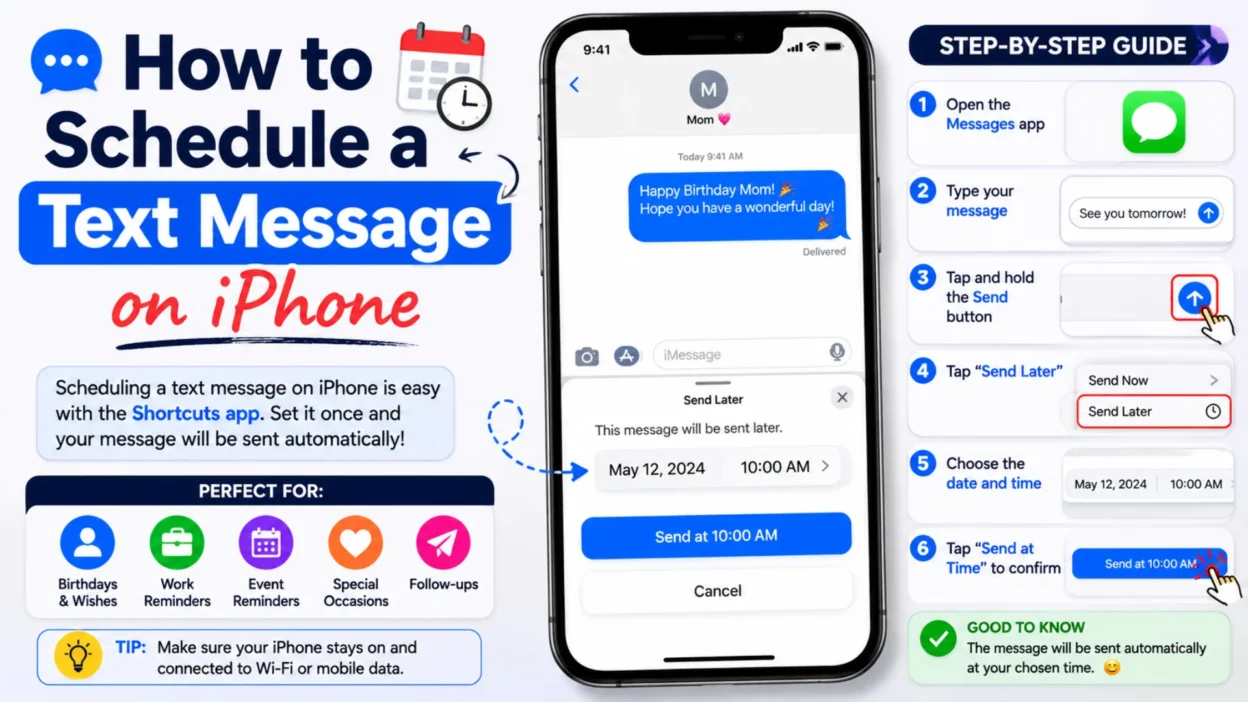
How to Schedule a Text Message on iPhone
The process is simple when the Send Later option is available.
1. Open the Messages App
First, open the Messages app on your iPhone.
Next, choose an existing conversation or start a new one with the person who should receive your message.
2. Tap the Plus Button
Open the conversation and look beside the text field.
Tap the + button to view additional messaging options.
3. Choose Send Later
From the available options, tap Send Later.
The scheduling controls will then appear.
If you don’t see this option, your iPhone may not have a compatible iOS version or the conversation may not support scheduled messages.
4. Select the Date and Time
Choose the date and time when you want the message delivered.
Take a moment to check the selected date carefully. This is especially important for birthdays, appointments, deadlines, and other time-sensitive messages.
5. Write Your Message
Now type the message you want to send.
Keep it natural and clear. You can also review the spelling before scheduling it.
6. Schedule the Message
After checking the recipient, wording, date, and time, confirm the scheduled message.
The message will remain in the conversation until its scheduled delivery time.
How to View a Scheduled Text on iPhone
After scheduling a message, you can return to the conversation to check it.
The scheduled message should appear in the conversation with an indication that it hasn’t been delivered yet.
This makes it easier to review your upcoming messages.
For example, if you scheduled a birthday message several days in advance, you can open the conversation and confirm that the message is still scheduled.
How to Edit a Scheduled Text Message
Plans can change, so you may need to modify a scheduled message.
Open the conversation containing the scheduled message. Then, select the scheduled message and use the available editing controls.
You may want to change:
- The wording
- The recipient
- The delivery time
- A date
- A name
- A spelling mistake
Always review the final version before leaving the conversation.
How to Reschedule a Text Message on iPhone
Sometimes you don’t want to delete a message. You simply want to send it at another time.
In that situation, open the scheduled message and adjust the delivery time using the available controls.
Choose a new date and time. Then, confirm the change.
This option is helpful when your plans change unexpectedly.
How to Cancel a Scheduled Text Message
You can also remove a scheduled message before it is sent.
Open the conversation and find the scheduled message.
Use the available message controls to delete or cancel it.
Before confirming, make sure you’re removing the correct message. This is especially important in busy conversations with multiple texts.
What Happens When a Scheduled Text Is Sent?
When the scheduled time arrives, the message is sent to the recipient.
It appears as a normal message in the conversation.
Therefore, the recipient can read it just like any other text message.
For example, you can schedule a birthday message for the morning. When the selected time arrives, the recipient receives the message without you needing to send it manually.
Why Can’t I Find Send Later on My iPhone?
If you can’t find Send Later, don’t worry. There are several possible reasons.
Your iOS Version May Be Older
Some Messages features require newer versions of iOS.
Check your iPhone’s software version if the option isn’t available.
The Conversation May Not Support It
Messaging features can vary depending on the type of conversation.
If you’re communicating through a different messaging system, the available options may not be the same.
The Messages Interface May Look Different
Apple changes the Messages interface from time to time.
As a result, buttons can move after an iOS update.
Look under the + button near the message field to find available options.
How to Schedule a Birthday Text on iPhone
Birthday messages are one of the easiest ways to use scheduled texting.
You can write the message several days before the birthday. Then, schedule it for the time you prefer.
For example:
“Happy birthday! I hope you have an amazing day filled with happiness, laughter, and great memories.”
This approach can be especially useful when you don’t want to forget an important date.
How to Schedule a Good Morning Text
You can also prepare a morning message in advance.
For example, write your message before going to bed and schedule it for the next morning.
This works well for:
- Partners
- Friends
- Family members
- Coworkers
- Daily reminders
Nevertheless, make sure the selected delivery time is appropriate for the recipient.
How to Schedule a Work Text on iPhone
Scheduled messages can also help with professional communication.
Suppose you finish writing a non-urgent work message late at night. Instead of sending it immediately, you can schedule it for the next working day.
This can help maintain reasonable communication hours.
However, consider your workplace communication preferences. For important business information, email or another professional platform may be more appropriate.
Can You Schedule a Group Text on iPhone?
When the feature is supported, you can schedule a message within a group conversation.
The basic process remains the same:
- Open the group conversation.
- Tap the + button.
- Choose Send Later.
- Select the date and time.
- Write your message.
- Confirm the schedule.
Before scheduling, make sure everyone in the group should receive the message.
Can You Schedule a Text to Yourself?
Depending on your messaging setup, you may be able to schedule a message to your own number.
This can be useful for simple personal reminders.
However, Apple’s Reminders app may be better when you need recurring alerts or task management.
A scheduled text works best when you already know the exact message you want to receive later.
Can You Schedule a Text With a Photo?
The available scheduling options can depend on your iOS version, conversation type, and the content you’re trying to send.
If you’re including a photo or another attachment, check the options displayed in Messages before scheduling.
For important attachments, review everything carefully before confirming the scheduled message.
Can You Schedule Recurring Text Messages on iPhone?
The built-in Send Later feature is designed for scheduled messages rather than a complete recurring-message system.
Therefore, if you need the same type of message regularly, another approach may be more practical.
For example, you could use a recurring reminder that tells you when to send the message manually.
This gives you more control when the wording needs to change each time.
Does the Recipient Know a Text Was Scheduled?
The recipient receives the message when it is delivered.
They don’t need to know that you prepared the message earlier.
Consequently, scheduled messages can feel like normal texts.
This makes the feature useful for birthdays, reminders, and planned communication.
Does the iPhone Need to Be Open for a Scheduled Text?
You generally don’t need to keep the Messages app open on your screen while waiting for the scheduled delivery time.
The feature is designed to handle the message later.
Still, your iPhone needs to be functioning normally. Connectivity and messaging conditions can also affect delivery.
Therefore, keeping your device updated and operational is a good idea.
What If a Scheduled Message Doesn’t Send?
If a scheduled message doesn’t send as expected, check a few things.
Check Your Internet Connection
Depending on the messaging service, connectivity can affect delivery.
Make sure your iPhone has an appropriate connection.
Check the Scheduled Time
Open the conversation and confirm that the message was scheduled for the correct date and time.
Check Your iOS Version
If you’re experiencing unusual behavior, check whether your iPhone has an available software update.
Check the Conversation
Make sure you’re using a messaging setup that supports the scheduling feature.
If the problem continues, restarting the iPhone may also help.
Scheduled Text vs. Reminder: What’s Better?
Both options are useful, but they serve different purposes.
| Feature | Scheduled Text | Reminder |
|---|---|---|
| Sends a message automatically | Yes, when supported | No |
| Reminds you to act | Not its main purpose | Yes |
| Good for birthdays | Excellent | Good |
| Good for tasks | Limited | Excellent |
| Useful for planned messages | Excellent | Good |
| Good for recurring tasks | Limited | Excellent |
Use Send Later when you already know what you want to say.
Use a reminder when you still need to decide what action to take.
Best Reasons to Schedule a Text Message
There are many practical situations where scheduling helps.
Birthday Wishes
Prepare your birthday message ahead of time so you don’t forget.
Morning Messages
Schedule a friendly message for the morning without setting an extra reminder.
Work Communication
Send non-urgent messages during appropriate working hours.
Travel Updates
Prepare an update before your trip and schedule it for later.
Special Occasions
Schedule congratulations, holiday wishes, or other planned messages.
Personal Reminders
Use scheduled messages for simple reminders when a text is more convenient than another notification.
Common Mistakes When Scheduling Texts
Even though scheduling is convenient, a few mistakes can cause problems.
Choosing the Wrong Recipient
Always check the conversation before scheduling.
Selecting the Wrong Time
Review the date and time carefully.
A mistake here could make a message arrive too early or too late.
Forgetting a Scheduled Message
If your plans change, return to the conversation and review your scheduled messages.
Scheduling Sensitive Information
Think carefully before scheduling private information.
A scheduled message can be sent automatically, so make sure the content is appropriate.
Writing an Extremely Long Message
Keep your scheduled text focused.
Shorter messages are often easier for the recipient to read.
Tips for Better Scheduled Text Messages
A scheduled message should still sound natural.
For example, instead of writing:
“This is an automated reminder regarding our previously discussed appointment.”
Try:
“Just a quick reminder about our appointment tomorrow. See you then!”
The second version sounds more conversational.
Similarly, personalize birthday and family messages instead of using generic wording.
When Should You Avoid Scheduling a Text?
Scheduling isn’t ideal for every situation.
Avoid it when:
- The message needs an immediate response
- The information may change before delivery
- You’re discussing something sensitive
- The recipient needs to ask questions
- The message depends on a future event
- You aren’t certain about the recipient
In these situations, sending the message manually may give you better control.
Is Scheduling Text Messages on iPhone Safe?
Scheduling a message is a convenient feature, but you should still think about what you’re sending.
Avoid scheduling highly sensitive information unless necessary.
Additionally, double-check the recipient before confirming the schedule.
This simple habit can prevent an accidental message from reaching the wrong person.
Quick Steps to Schedule a Text Message on iPhone
Here’s the process at a glance:
- Open Messages.
- Select a conversation.
- Tap the + button.
- Choose Send Later.
- Select a date and time.
- Write your message.
- Check the recipient and wording.
- Confirm the schedule.
- Edit or cancel it later if necessary.
The exact interface may vary depending on your iOS version.
Frequently Asked Questions
How do I schedule a text message on iPhone?
Open Messages, choose a conversation, tap the + button, select Send Later, choose a date and time, write your message, and confirm the schedule.
Where is Send Later on iPhone?
Open a conversation in Messages and tap the + button beside the text field. If your iPhone supports the feature, Send Later should appear among the available options.
Can I schedule a text for tomorrow morning?
Yes. Choose tomorrow’s date and select the morning time you want the message to be delivered.
Can I edit a scheduled text?
Yes, supported versions of Messages provide controls for managing scheduled messages. You can adjust the content or delivery time before it is sent.
Can I cancel a scheduled message?
Yes. Open the conversation, select the scheduled message, and use the available controls to remove it before delivery.
Why don’t I have the Send Later option?
Your iPhone may be using an unsupported iOS version, or the conversation may not support the feature. Also, the Messages interface can vary after software updates.
Can I schedule a group text?
When supported, you can schedule a message in a group conversation using the same Send Later process.
Can I schedule recurring text messages?
The built-in Send Later feature isn’t designed as a full recurring-message system. For repeated tasks, reminders or automation may be more suitable.
Can I schedule a message with a photo?
Available options depend on your iOS version, messaging setup, and attachment type. Check the options displayed when you prepare the scheduled message.
Does the recipient know I scheduled the message?
The recipient receives the message when it’s delivered. They don’t need to know that you prepared it ahead of time.
Conclusion
Knowing how to schedule a text message on iPhone can make planned communication much easier. The Send Later feature lets you prepare a message in advance and choose when it should arrive.
It’s useful for birthdays, reminders, morning messages, work communication, and special occasions. However, always check the recipient, wording, date, and time before confirming a scheduled message.
If your plans change, you can review the scheduled message and use the available controls to edit, reschedule, or cancel it.
Once you start using Send Later, you’ll have a simple way to make sure important messages arrive at the right time.

Serhii Dunev is a passionate content creator dedicated to crafting meaningful texts, messages, and word inspirations. He aims to help people express their emotions clearly through simple and impactful words.